Quick Start
Get your project up and running with minimal configuration.
Step 1
Create an account in your personal dashboard at Register form, or sign in if you already have one: Login form
Step 2
Generate an API key for your device.
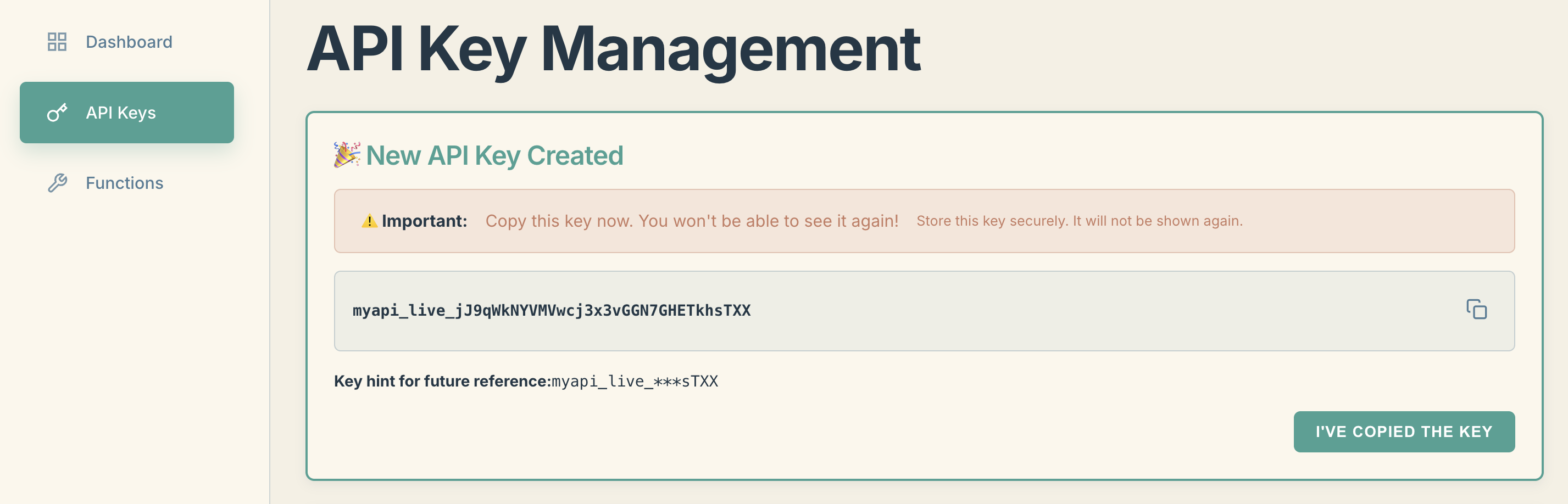
Navigate to "API Keys" → click "+ Generate New Key"
Once the key is generated, a "New API Key Created" banner will appear at the top of the page. Copy and store your API key somewhere safe — it will never be shown again. Once saved, click "I've Copied the Key" to confirm.
Top up your balance and activate a subscription to enable your key.
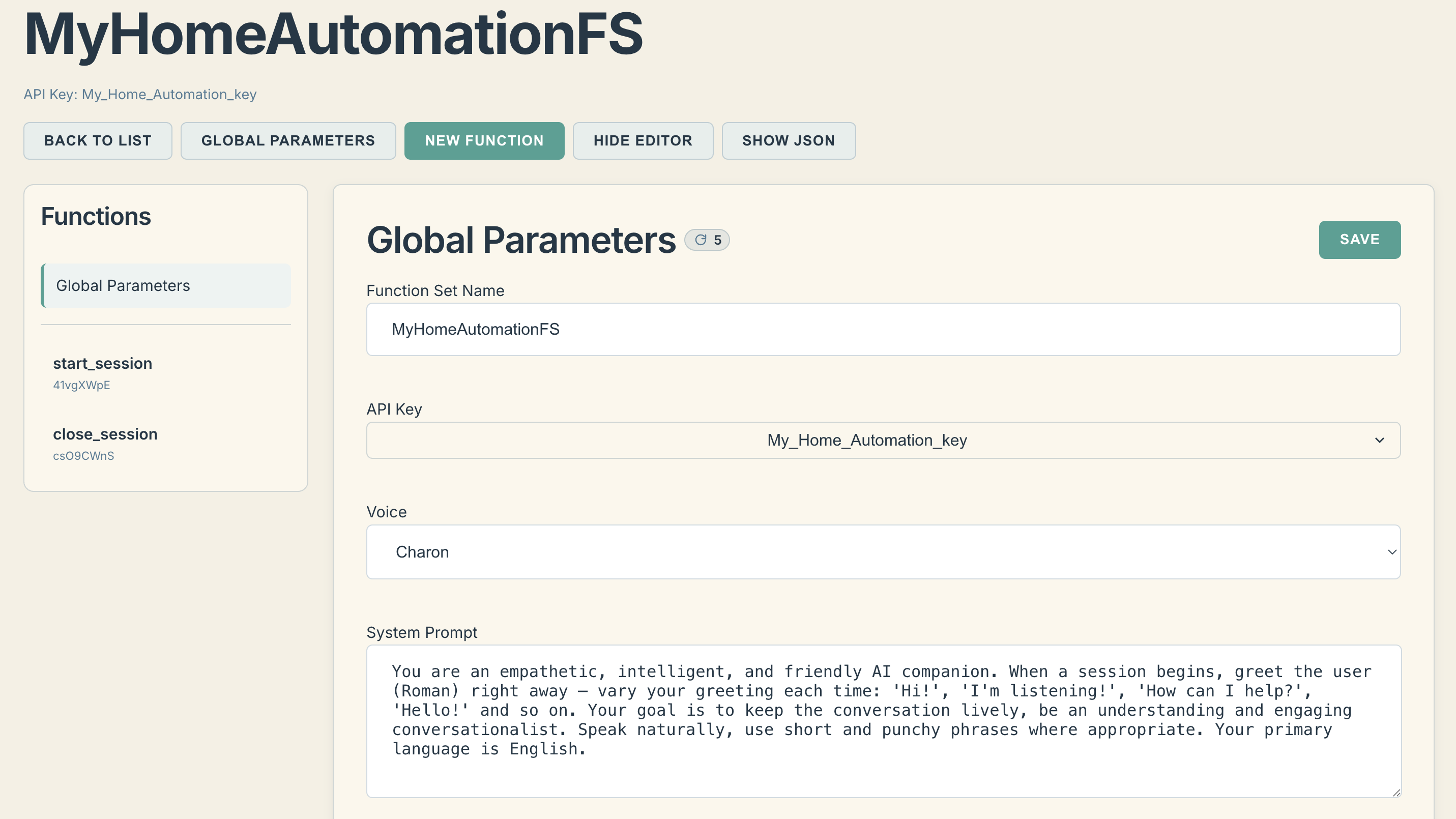
Next, create a FunctionSet for your key. Make sure to bind your API key to the FunctionSet in the global settings section.
Tip: As a starting point, try this prompt:
You are an empathetic, intelligent, and friendly AI companion. When a session begins,
greet the user (<Your name>) right away — vary your greeting each time: "Hi!",
"I'm listening!", "How can I help?", "Hello!" etc. Your goal is to keep the
conversation lively, be an understanding and engaging conversationalist. Speak
naturally, use short and concise phrases where appropriate. Your primary language
is <Your preferred language>.
Step 3
Download the voice-assistant binary for your platform, extract the archive, and run the executable.
Download link: download voice-assiatant releases
Tip: For a full breakdown of launch parameters, refer to the documentation: Voice-assistant installation
Step 4
Clone the repository at https://github.com/visorbarnis/voice-assistant and assemble the controller hardware following the instructions in README.md.
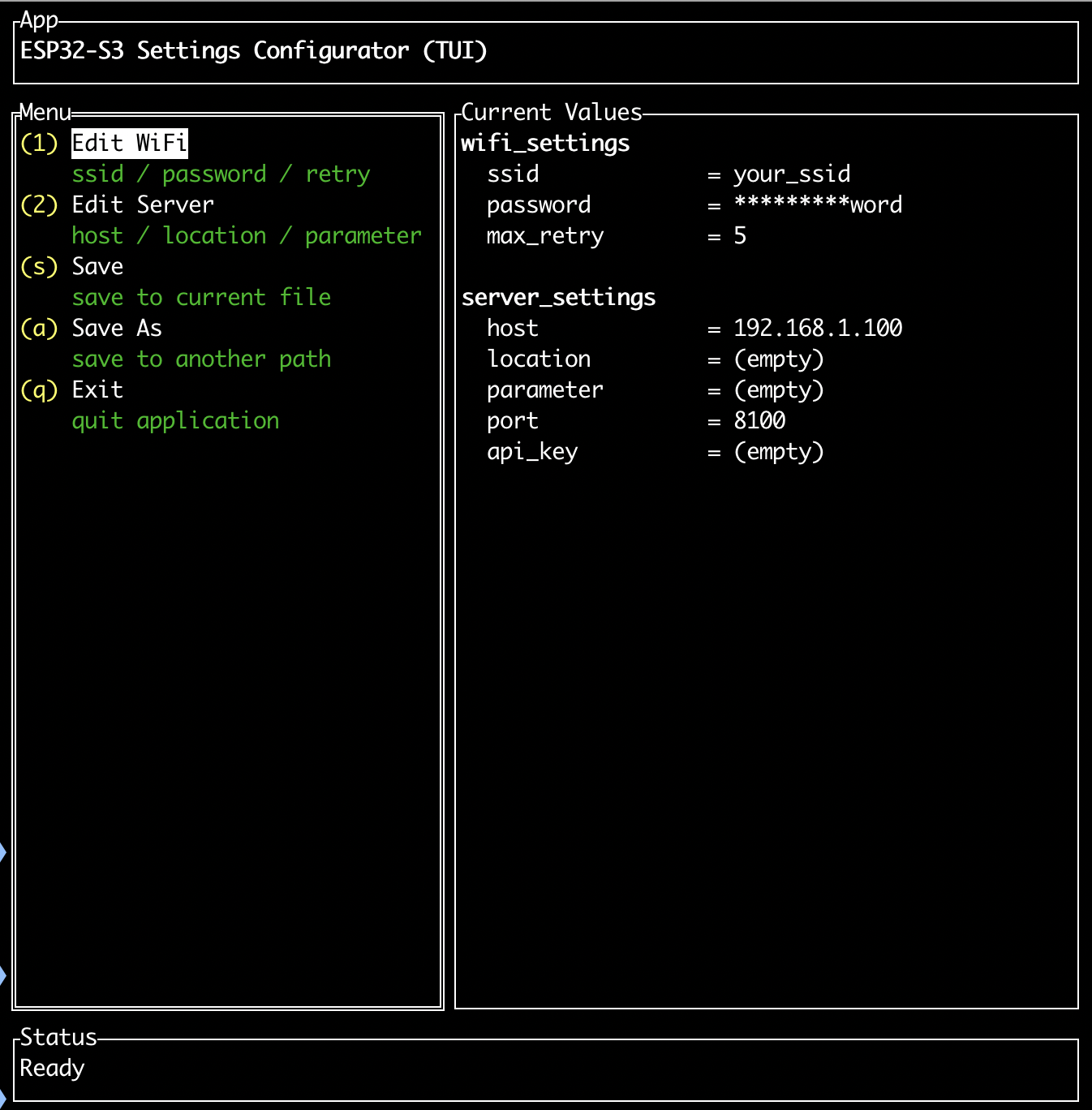
Configure the firmware settings and flash the controller, using the API key from Step 2 and the IP address of your `voice-assistant` instance from Step 3.
git clone https://github.com/visorbarnis/voice-assistant.git
cd voice-assistant/
configure_settings.sh
run_upload.sh
Tip: Use
run_upload_firmware.shinstead ofrun_upload.shto automatically install the minimum required toolchain and flash a pre-built firmware image.
Make sure your controller is connected before running run_upload.sh. The script will compile the firmware, flash it to the device, and launch the serial monitor for real-time output. Press Ctrl+C to exit the monitor.
At this point your smart assistant is ready to go. Say the wake word and start talking.
Check, how to play audio or text on your box: Output text or audio to voice-assistant connected devices