MCP Protocol Integration
The voice-assistant now features integrated support for the Model Context Protocol (MCP) to enable seamless interaction with AI agent systems. A dedicated "MCP" section is available in the user dashboard, where you can configure the integration between the voice interface and external MCP servers.
Supported external Server Types
The system supports three types of transport implementations:
-
STDIO – allows running external MCP servers as child processes directly within the voice-assistant environment.
-
LEGACY SSE – provides compatibility with MCP servers using the older Server-Sent Events protocol. This requires two endpoints: one for maintaining a persistent connection and receiving events (intents), and another for sending commands (HTTP POST).
-
STREAMABLE HTTP – a modern protocol implementation that enables interaction with an external MCP server via a single, full-duplex connection.
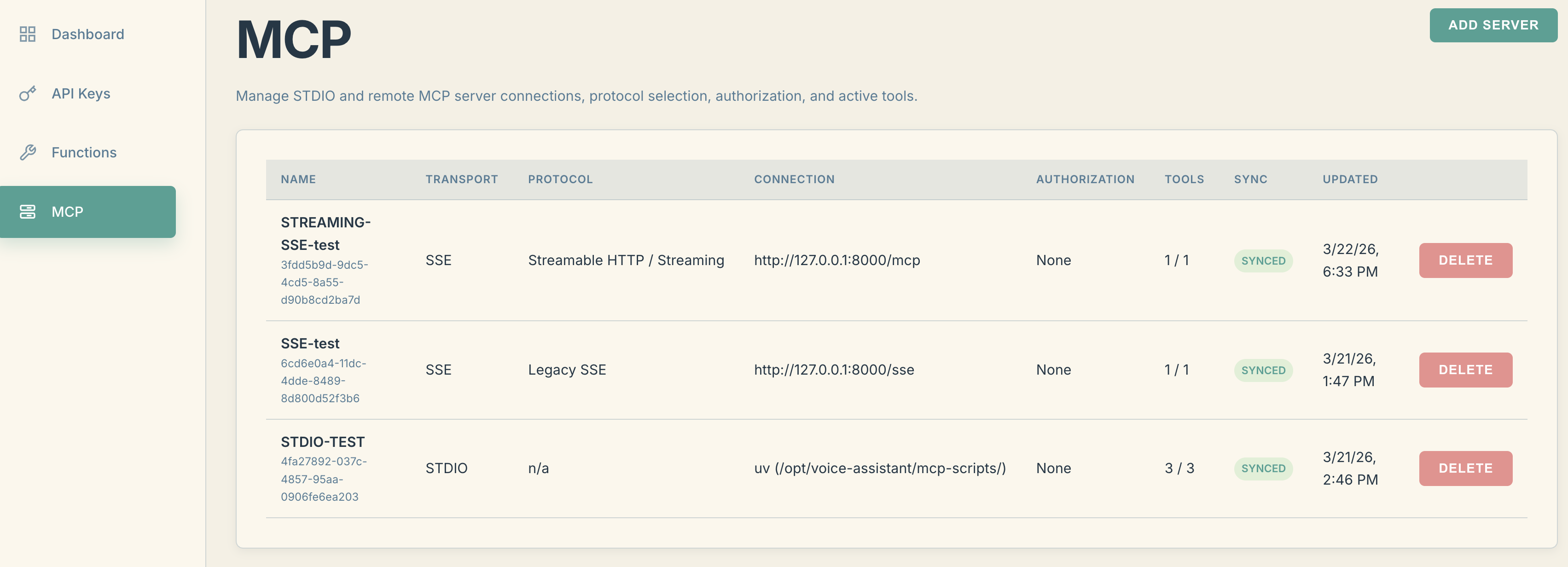
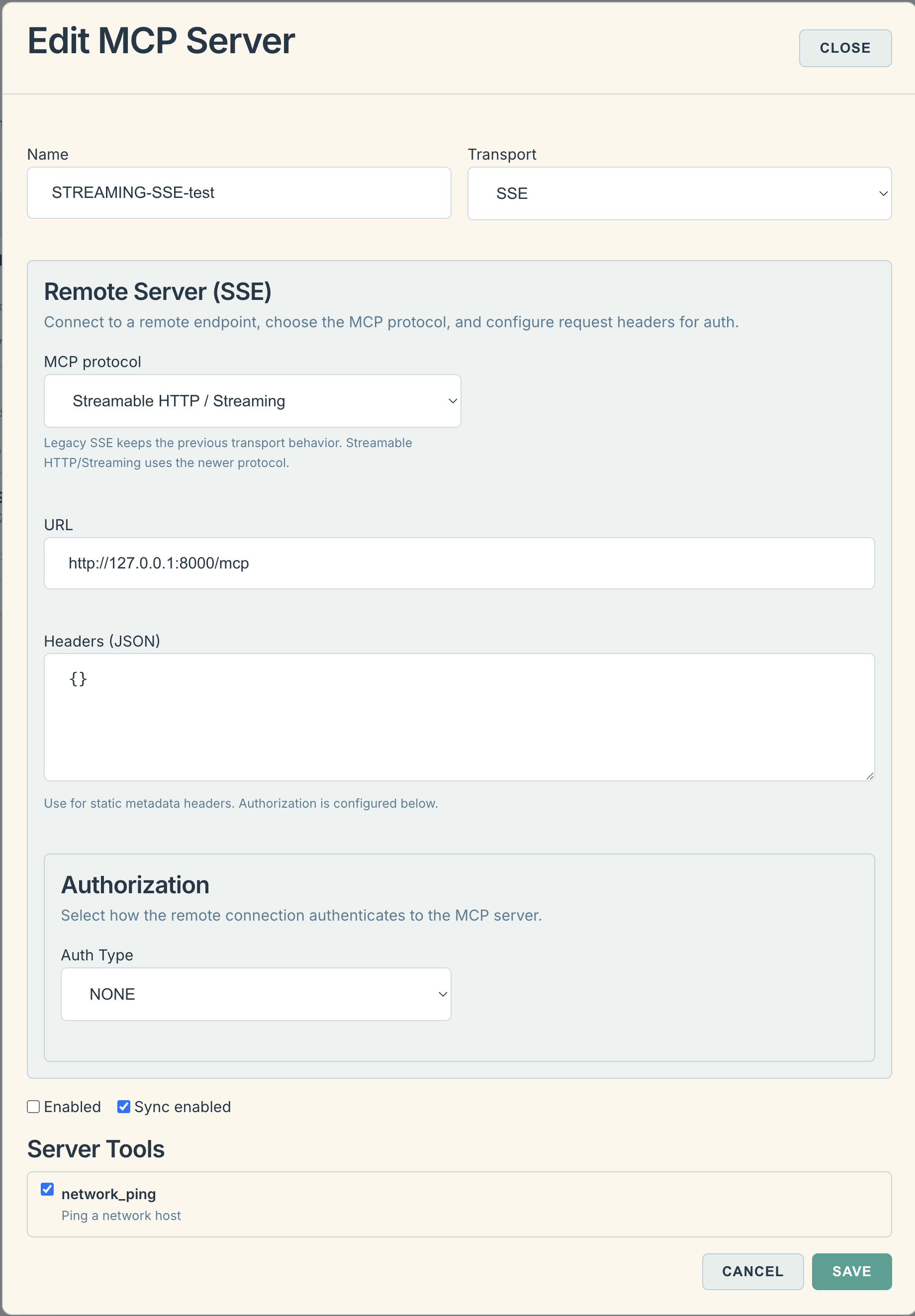
How External MCP Integration Works
-
In the MCP section of your dashboard, create a new connection to an MCP server.
-
The next time the voice-assistant queries the model, it synchronizes the server settings between your dashboard and the running voice-assistant instance.
-
Once the MCP server configuration is received, the voice-assistant will attempt to connect to the external server when your controller is linked.
-
Upon a successful handshake, the voice-assistant retrieves the list of available tools from your MCP server and syncs them with your dashboard.
In the dashboard, you can toggle specific tools on or off. If a tool is enabled, its description and parameters are passed to the LLM context, allowing you to trigger them using voice commands.
Integrating Voice-Assistant API into Internal MCP Server
The voice-assistant includes a lightweight API for controlling audio settings, playing audio files, and performing text-to-speech (TTS) using the model's voice.
In addition to standard API access, these functions are now exposed via the MCP protocol. Essentially, the voice-assistant acts as an MCP server, providing its core functions as a standardized set of tools for external agents.
Configuring Access to Voice-Assistant Tools
1. Access via STDIO Transport
To use the voice-assistant as a local process (e.g., in Claude Desktop), use the following configuration:
JSON
"voice-assistant-embedded": {
  "command": "npx",
  "args": [
    "-y",
    "mcp-remote",
    "https://<YOUR_VOICE_ASSISTANT_IP>:8100/mcp",
    "--transport",
    "http-only",
    "--header",
    "Authorization: Bearer <YOUR_API_KEY_FROM_DASHBOARD>"
  ],
  "env": {
    "VA_AUTH_HEADER": "Bearer <YOUR_API_KEY_FROM_DASHBOARD>",
    "NODE_TLS_REJECT_UNAUTHORIZED": "0"
  }
}
Usage Example:
Add the following to your agent's system prompt: "Speak the phrase 'Research complete' via the voice-assistant MCP at the end of your task," and your AI assistant will provide audio confirmation.
Note: Your API key (from the dashboard) determines which specific voice interface the audio will be routed to.
2. Access via STREAMABLE HTTP
Choose the appropriate endpoint based on your AI agent's ability to handle self-signed SSL certificates:
-
For agents supporting self-signed certificates:
https://<YOUR_VOICE_ASSISTANT_IP>:8100/mcp -
For agents WITHOUT self-signed certificate support (HTTP):
http://<YOUR_VOICE_ASSISTANT_IP>:8110/mcp
Authorization:
For both cases, remember to include the authorization header with your API key:
Authorization: Bearer <YOUR_API_KEY_FROM_DASHBOARD>
Example for Codex CLI (~/.codex/config.toml):
Ini, TOML
[mcp_servers.voice-assistant]
enabled = true
url = "http://192.168.178.2:8110/mcp"

[mcp_servers.voice-assistant.http_headers]
Authorization = "Bearer myapi_live_sdkjfhsdjfkjsdhfsjdhfgds"